As you may have noticed, my hole web site were down for some days in the last week. It were due to some problems at my host, but it should now be fixed.
UPDATE: I can see that it is still a little unstabile.


Building enterprise solutions by day and games by night
As you may have noticed, my hole web site were down for some days in the last week. It were due to some problems at my host, but it should now be fixed.
UPDATE: I can see that it is still a little unstabile.
I have thought about this many times, but never had the time to make the research to find an solution.
The problem is that if you put an .asmx (web service) on a web server, it will as the default, be able to show the WSDL information to everybody. This isn’t of cause very good, as anyone then easily can see all methods in the web service. Of cause a web service is typically accessible from the public, as this is where it’s purpose to be used from. Anyways, it’s not good to show the WSDL, so I wanted to remove it.
All you need to do, is to add these lines to your web.config:
<? xmlversion=”1.0″ encoding=”utf-8″?>
<configuration>
<system.web>
<webServices>
<protocols>
<remove name=”Documentation”/>
</protocols>
</webServices>
</system.web>
</configuration>
Read the rest of the article from where I found this here: http://www.15seconds.com/Issue/040609.htm
I have now hear about the ability to blog from LIVE writer on the blog engine.net as I’m using, and today I decided to give it a try.
It actually works pretty simple and easy.
You may think – “Why should I blog from a desktop application, when I can blog from the web?”. Well, I don’t really need to blog from a desktop application, but I most say it actually seems pretty sweet and easy as I’m sitting here writing this first blog, but back to the question. People that isn’t that much familiar with the web, maybe find it “hard” to blog from the administration via the web and maybe find it easier in a desktop application, as it is more familiar to them.
Let’s try some feature, let’s insert a picture:
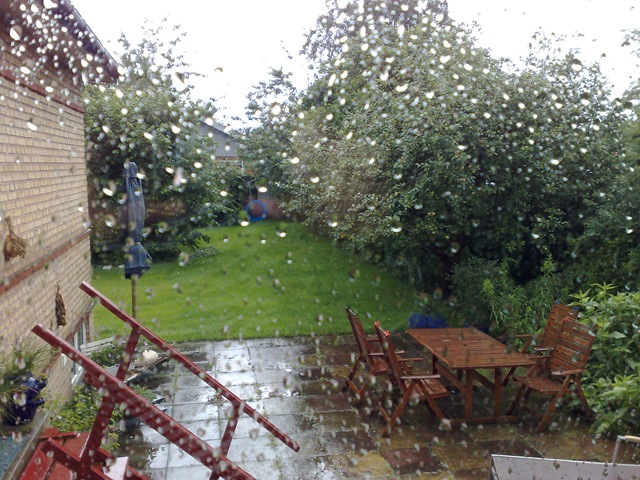
It opens up the file browser on my PC here, and not my image folder at my blog. And now that I have inserted the image and selected it, I have some different kinds of possibilities.
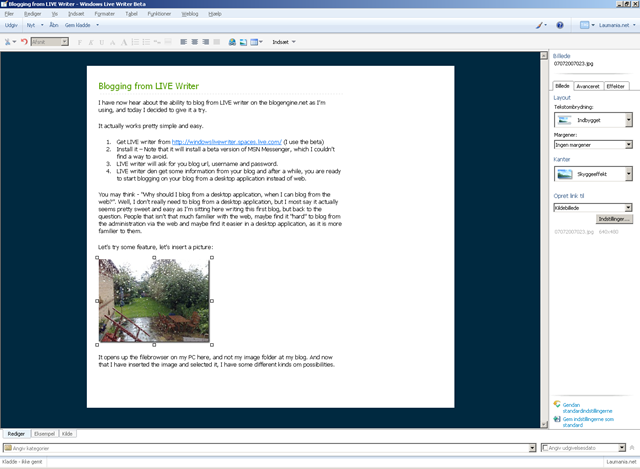
Oh my god, this is nice! I just took at screenshot as I’m writing this blog, and just CTRL+V and bang! It’s in the post. That is actually VERY handy :)
Let’s try that again so I can show you what else I can insert:
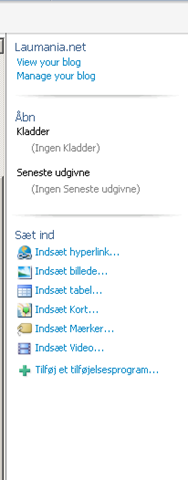
Wow, I can crop a screenshot too! Sweet. Hmm it’s in Danish, damn, sorry for all the English speaking people out there.
Well, lets’ try inserting a Map:
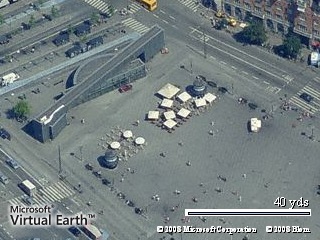
Also seem to work fine.
That most be all for now, it actually seems to be pretty handy anyway, as a desktop application add much more features than the web based administration.
Now let me publish this post and see if all the images etc. get uploaded to the web too.